Mapping bar: pin your frequent folders to the screen edge
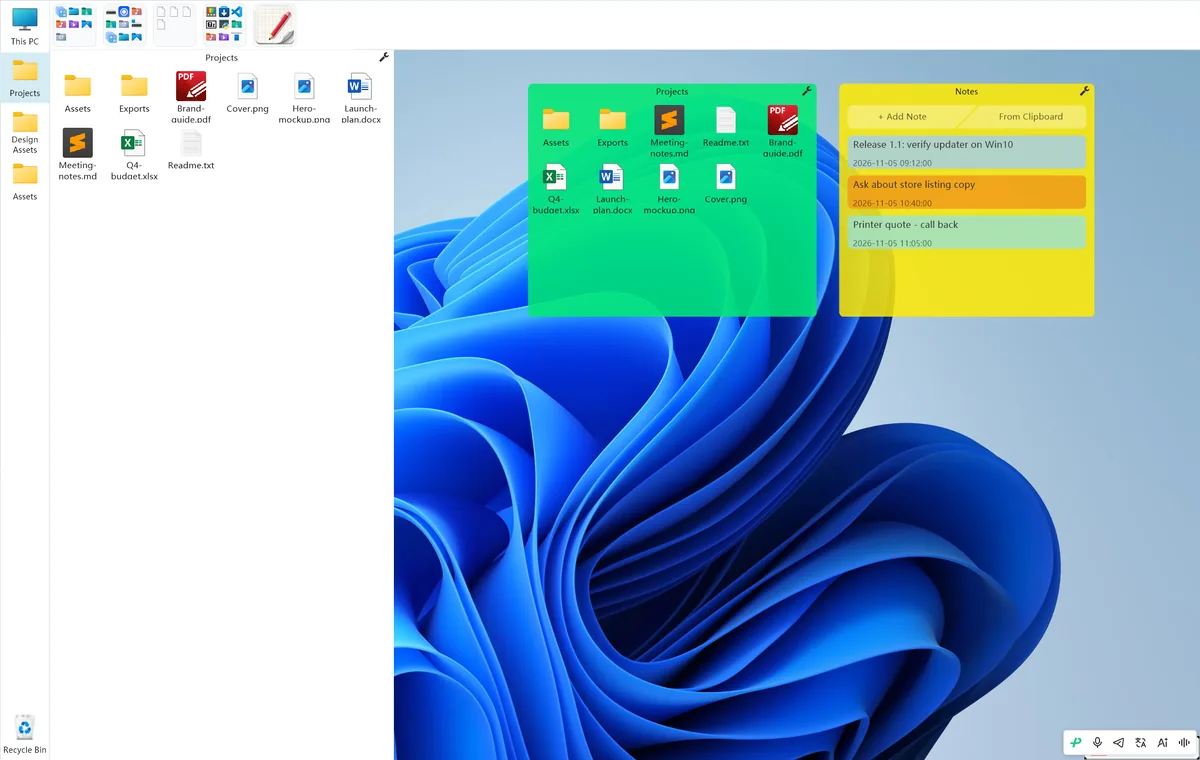
That vertical strip at the left edge isn't the taskbar. It's a row of folders you collected; one click opens it in the file panel beside it — and the panel is, by default, Windows' native Explorer view.
Two things to tell apart
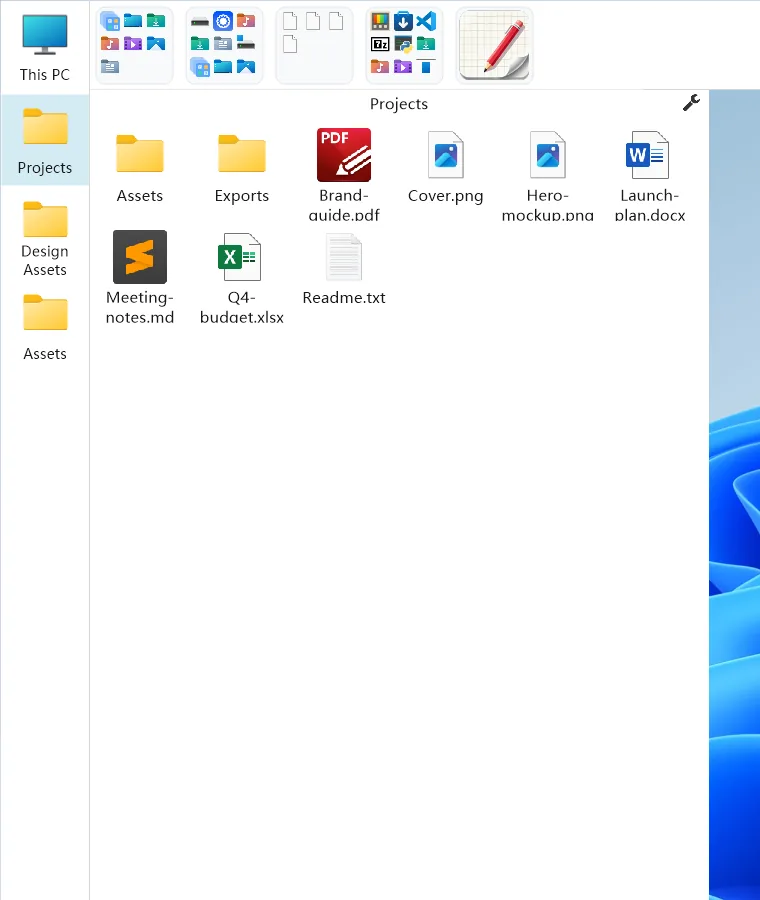
The mapping bar is the vertical strip along the left screen edge, about 90 px wide, with “This PC” pinned at the top followed by the folders you added. The file panel is the big block to its right that appears when you hover the mapping bar, showing the contents of whichever folder is open.
They’re a pair: the bar decides where to go, the panel unfolds that place for you.
Steps
Add a folder to the mapping bar
Right-click empty space in the mapping bar → “Add mapped folder…” → pick the folder → OK. The new entry lands at the end of the pinned area and is clickable immediately.
Dragging a folder from Explorer onto empty space in the mapping bar does not add a mapping; drag-and-drop is only for dropping files into an already-bound folder.
Open a folder
Hover the mapping bar and the file panel appears; click an item and the panel navigates there. By default it uses the system’s native Explorer view: right-click menu, drag in/out, copy-paste, column sorting, address bar — all the usual, nothing new to learn.
The item you clicked stays highlighted; going into a subfolder won’t make the highlight jump around — it always marks the last place you actively chose.
Go back
Double-click empty space in the file panel, or click the ↑ button on the panel, or press Alt + ↑, to go up one level.
Width and icon size
The mapping bar width is locked by default: right-click → uncheck “Lock width”, then drag its right edge; or hold Ctrl to drag temporarily. Unlocking is a runtime state — it reverts to locked on restart.
Icon size lives in Settings Center → Box Management → select “Mapping bar” on the left → “View” on the right → icon slider. The file panel width is just dragging its right edge.
Optional: switch to the self-drawn panel
Right-click the mapping bar → “Switch file display panel” → “Explorer” or “Mapping box”. Default is Explorer; the mapping box is a self-drawn view where the icon/list toggle and double-click-empty-to-go-up also work.
This switch is not in Settings — only in this one right-click menu.
Where the settings are
| What you want to change | Where |
|---|---|
| Add / remove a bound folder | Mapping bar right-click “Add mapped folder…”; remove via that entry’s right-click |
| Which file panel | Mapping bar right-click “Switch file display panel” |
| Mapping bar width | Right-click uncheck “Lock width”, then drag right edge, or hold Ctrl to drag |
| Icon size | Settings Center → Box Management → select “Mapping bar” → View → icon |
| File panel width | Drag the file panel’s right edge |
| Panel color / opacity | Settings Center → Box Management → Appearance |
Common mistakes
Dragging a folder onto the bar adds it
No. The only way to add a bound folder is right-click → “Add mapped folder…”.
Things dropped into a box are always just shortcuts
Two cases: dropping a .lnk / .url MOVES that shortcut into the config store (gone from its original spot); dropping an exe, a normal file, or a folder only creates a shortcut, leaving the original where it was.
Double-clicking empty space in the mapping bar also goes up
No. Double-clicking empty space in the mapping bar or dock pauses/resumes auto-sink; to go up, double-click empty space in the file panel.
The file-panel mode is switched in Settings
There’s no such switch in Settings; it’s in the mapping bar’s right-click menu.
One line: the mapping bar handles where I want to go, the quick-launch box handles the app I want to open. Both put entries into boxes, but their effect on the original files on disk is different.