How to use QiaoDesktop
Three guides to the three least-obvious things: how to pin folders to the screen edge, how to stash boxes away, and how to summon a box over any window. Every step is written from the actual operation, no concept-twisting.
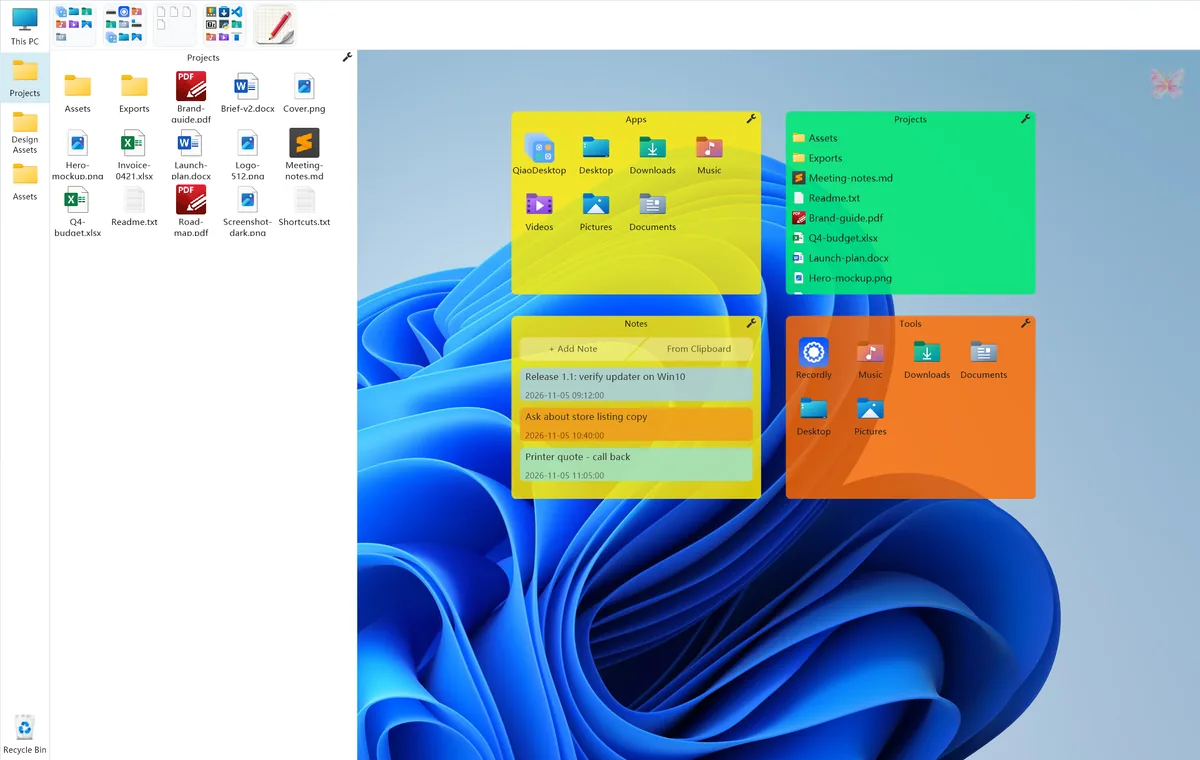
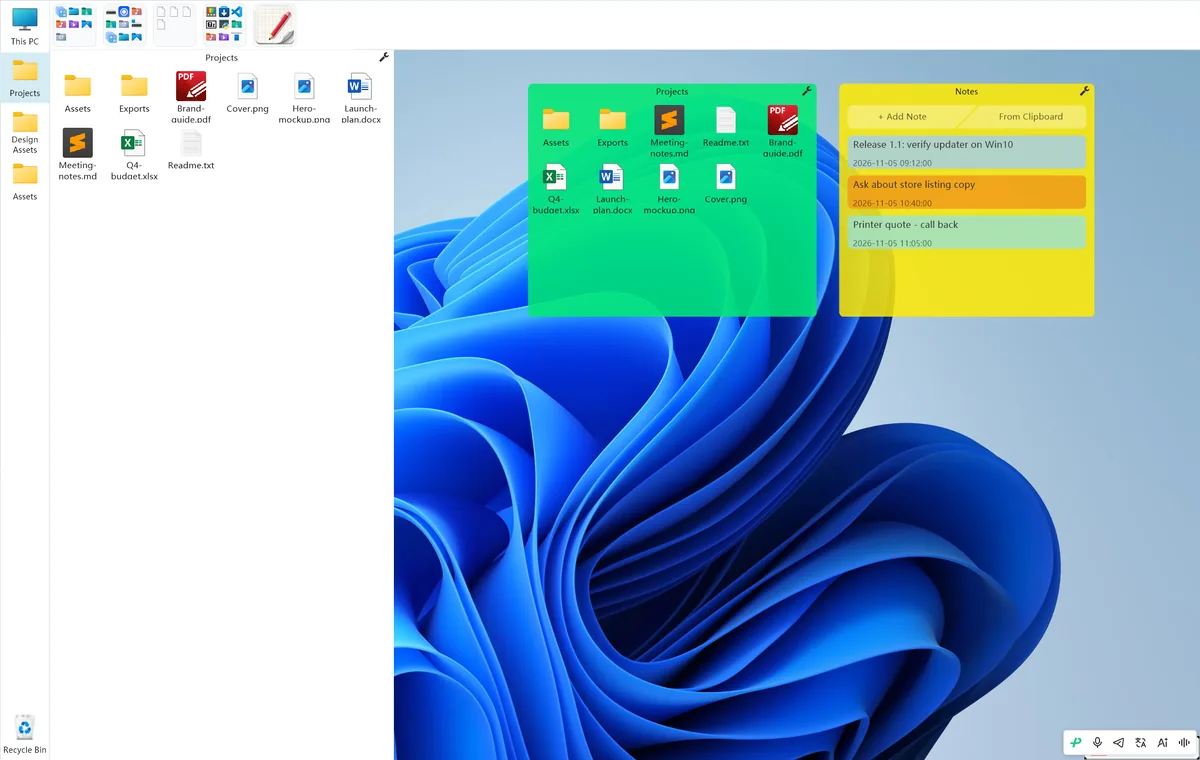
Pin your frequent folders to the screen edge
Right-click to add, click to open Explorer, double-click empty space to go up — and where width and icon size actually live.
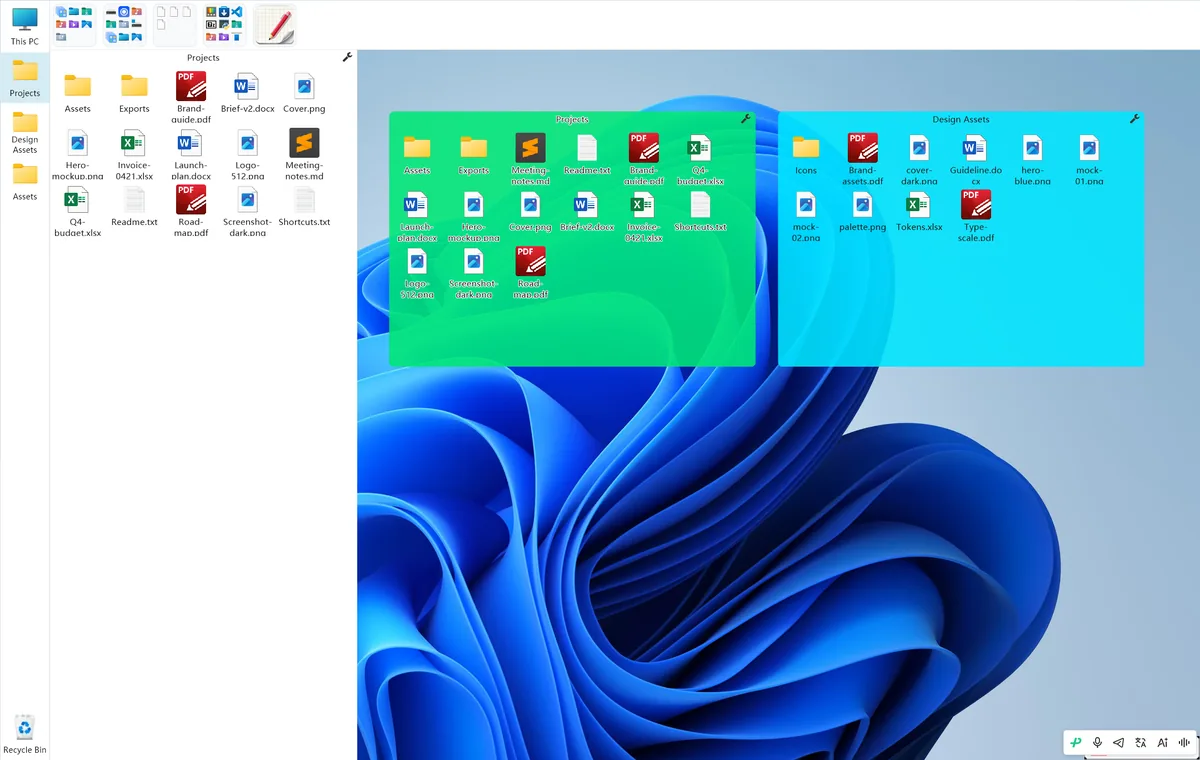
What gets stashed is the box, not the files
Right-click to dock, hover to expand, drag cards to reorder, switch dock side — and why dragging a box into the bar does nothing.
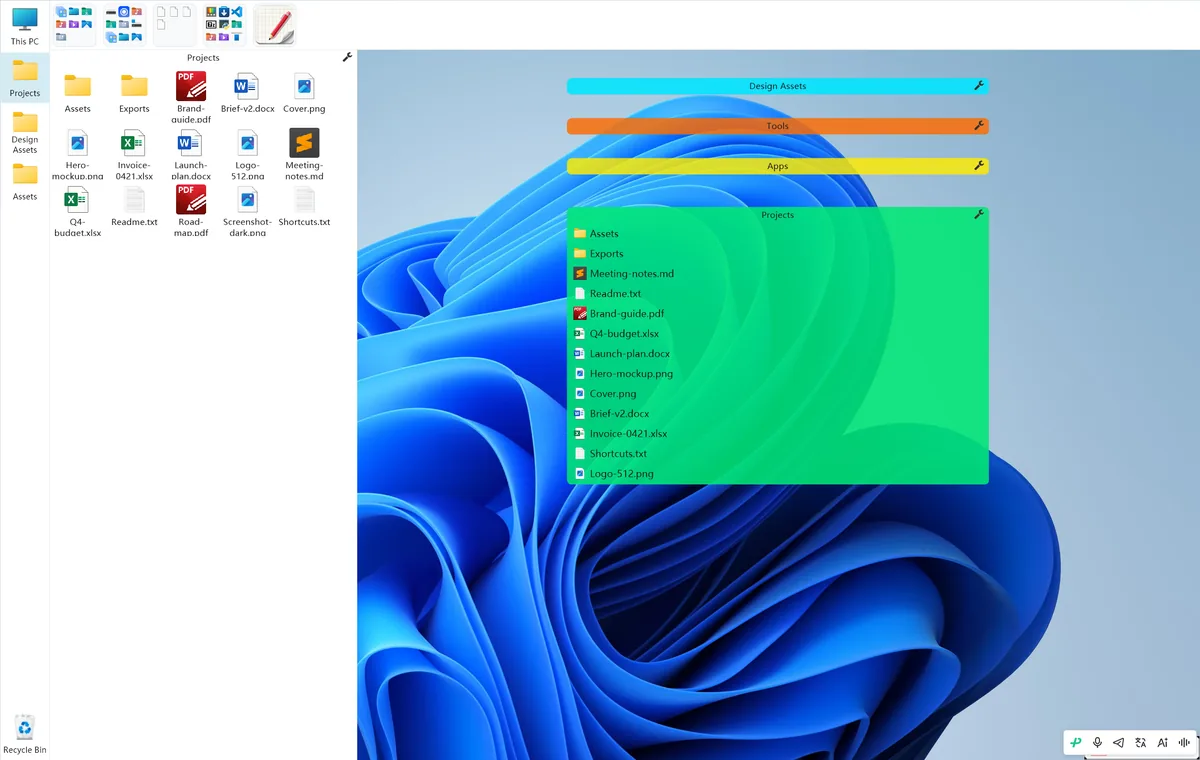
Get a box without leaving your window
Tap to float above your current window, hold to keep it up, release to auto-sink — and where idle/called states are set.
Everything else, at a glance
The three above are the core operations; the rest you don’t need to study — just know where they are.
| Capability | Notes & where |
|---|---|
| Box shapes | Normal, collapsed, iconized, docked, expanded. Collapsed leaves only a title bar; double-click empty space on the title bar to restore. |
| Dual file-panel mode | “Explorer” (default) and “Mapping box” self-drawn view, switched in the mapping bar’s right-click “Switch file display panel”, not in Settings. |
| Wallpaper | Image and video wallpapers, manual switch anytime. |
| Note box | Jot things right inside a desktop box; paste from clipboard supported. |
| Game mode | Tray menu “Game mode” or Ctrl+Alt+G to turn on manually, hides all boxes and edge hot-zones; doesn’t auto-detect game processes. |
| Backup & restore | Settings Center page 3, keeps the last 20 backups automatically, migrate your whole layout to a new PC. |
About the trial: organizing, boxes, the mapping bar, the dock, the float hotkey, tray summon, game mode and backup/restore are all unrestricted by the trial and keep working after it expires. PRO unlocks the super edge, auto-sink as low as 0.3 s, holding Ctrl to temporarily unlock a locked box, dynamic/video wallpaper and scheduled wallpaper switching.