The dock: what gets stashed is the box, not the files
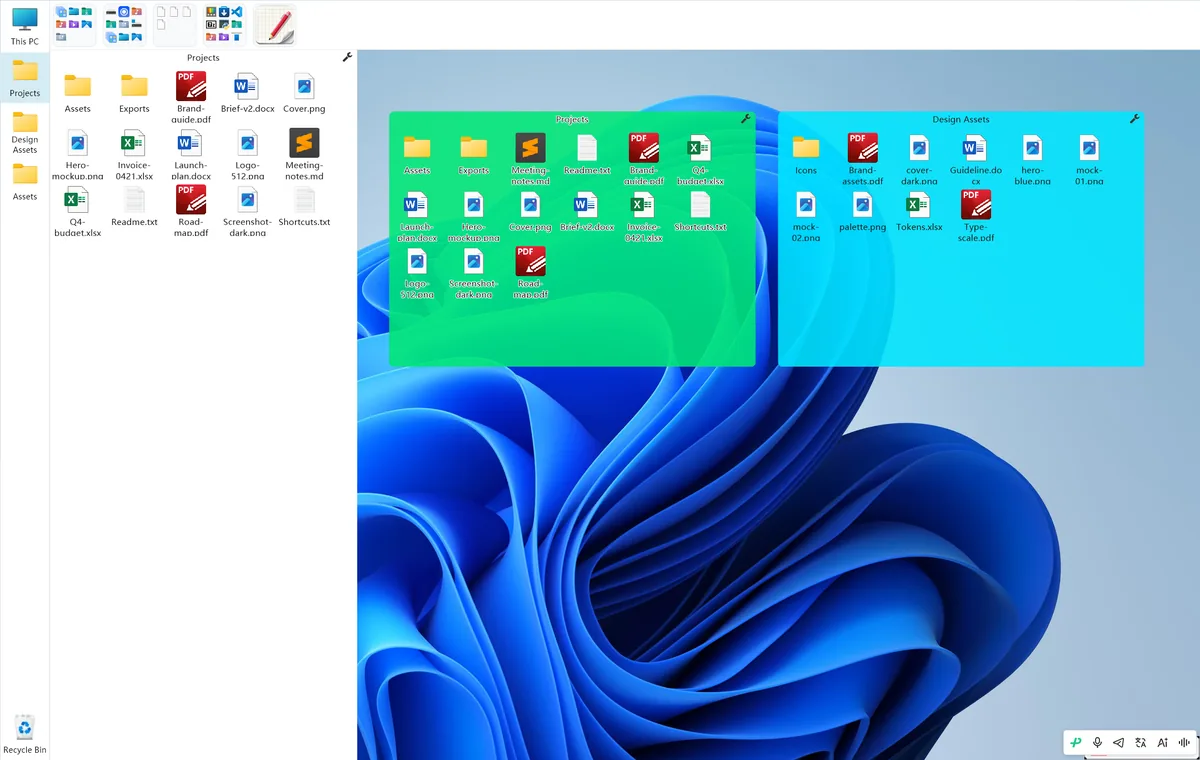
It doesn't stash files — it stashes the boxes you laid out. Once docked, the desktop is just wallpaper; hover to bring a box back.
It’s not the same as the mapping bar
The mapping bar holds folders — pointers to real directories on your disk. The dock holds the boxes themselves — the panels you created on your desktop. When you dock a box, it disappears from the desktop but is not deleted.
Steps
Dock a box
Right-click the dock → “Dock box” → pick the box from the list. You can dock three kinds: quick-launch boxes, folder-mapping boxes, and note boxes. The mapping bar, the dock itself, and the file panel cannot be docked.
A box is auto-locked the first time it’s docked, so it won’t move by accident when it expands. You can’t drag a box into the bar — only this right-click menu works.
Expand when you need it
Hover over a card and the box expands near the card; move away and it retracts into the bar. You can set “Don’t auto-hide” in the card’s right-click menu to keep it open.
A single click on a card does NOT expand it — it runs the first program in that box.
Reorder, leave gaps
Drag a card within the dock to a target slot. It uses absolute slots: if the target slot is occupied the two swap; dragging to an out-of-range slot auto-adds an empty slot, so gaps in the middle are allowed.
Change position and thickness
Right-click the dock → “Dock position & size” → choose “Top of screen” or “Right edge”, then “Wide dock” or “Ultra-narrow dock”. Default is top + wide.
This, too, is not in Settings — only in the dock’s right-click menu.
Get a box back
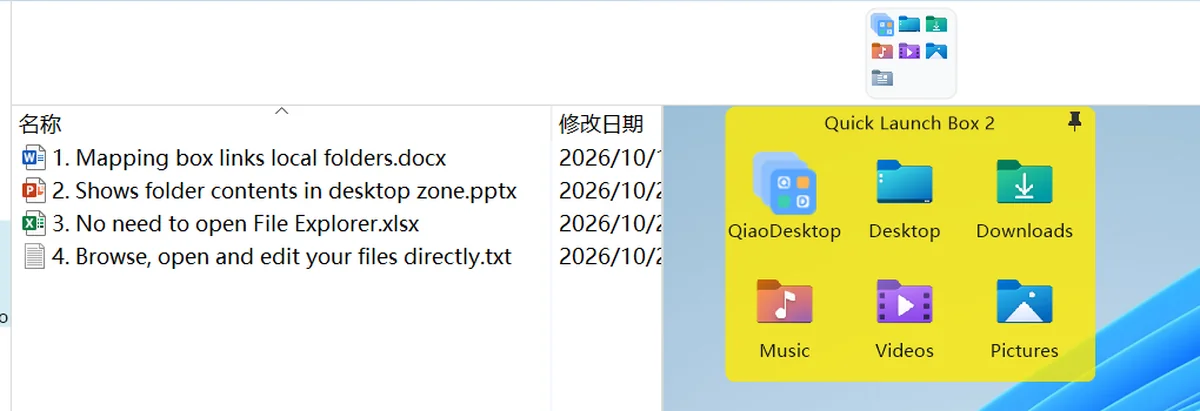
Right-click a card → “Undock”. The box auto-unlocks and returns to the desktop. Dragging a card to another window does nothing — right-click undock is the only way out.

Clear the desktop once more
After docking, if Windows’ own icons are still on the desktop, use the OS setting: right-click the desktop → View → uncheck “Show desktop icons”. This is a Windows setting; QiaoDesktop doesn’t change it for you.
| What you want to change | Where |
|---|---|
| Dock / undock a box | Dock right-click “Dock box” / card right-click “Undock” |
| Dock position & thickness | Dock right-click “Dock position & size” |
| Card order / gaps | Drag a card to a target slot within the bar |
| Keep a box expanded | Card right-click “Don’t auto-hide” |
| Clear Windows desktop icons | Windows: right-click desktop → View → Show desktop icons |
Common mistakes
System items can be docked too
“This PC”, “Recycle Bin”, “Control Panel” belong to the mapping bar; the dock only holds boxes.
One click on a card expands the box
A single click runs the first program in the box; expansion is by hovering.
The box stays where it was when expanded
No. It relocates near the card (by default appears below), not at its old desktop coordinates.
The docked box was deleted
No. Right-click the card “Undock” and it returns to the desktop with everything intact.
Here’s how the three fit together: the mapping bar on the left handles where I want to go; the dock on top handles not looking at these right now; in between, one clean desktop.